
Tracking Medical Providers and Medications
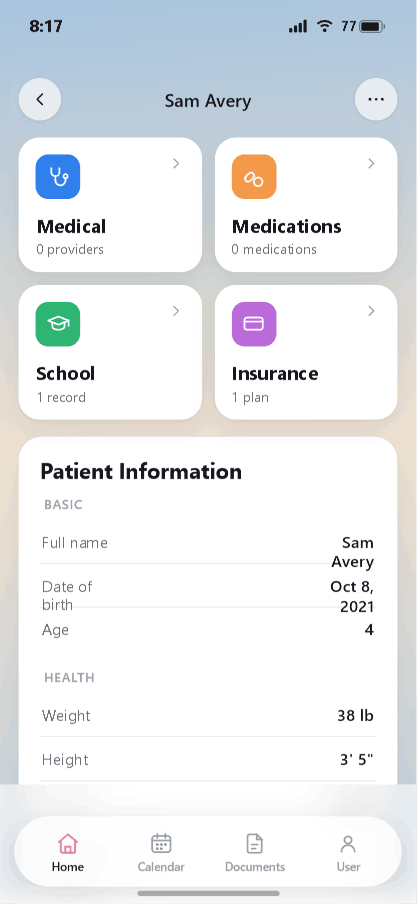
Each loved one has a profile that holds their care details, organized into Medical, Medications, School, and Insurance.
Open a loved one's profile
From the home screen, tap a loved one's card. Their profile shows the four record categories at the top and their basic and health information below.
Adding a medical provider
Tap the Medical tile, then the + button to add a provider.
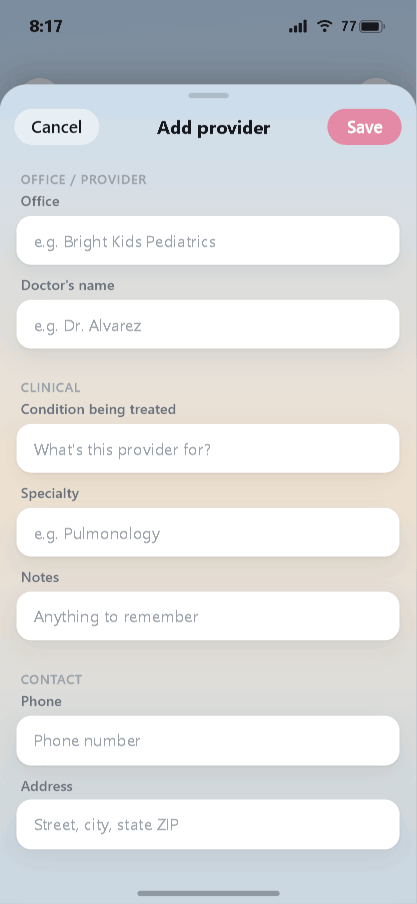
Fill in what you have:
- Office / Provider — the practice name and the doctor's name.
- Clinical — the condition being treated, the specialty, and any notes.
- Contact — phone and address.
Tap Save. The provider is now listed under this loved one's Medical records.
Adding a medication
Back on the profile, tap the Medications tile, then +.
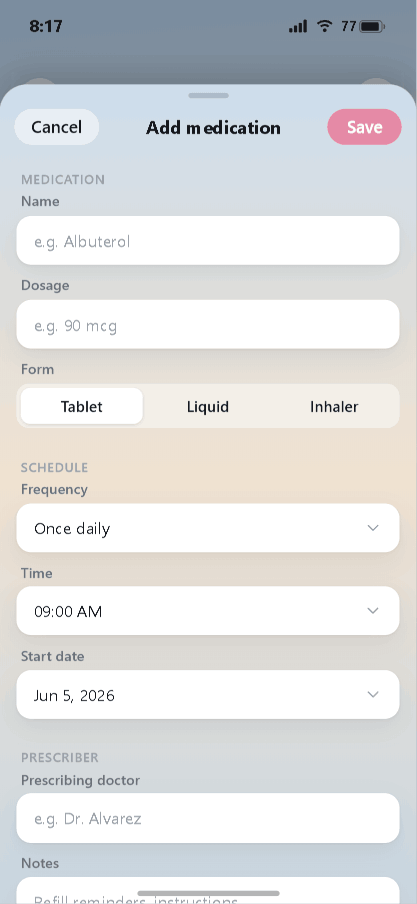
- Medication — name, dosage, and form (Tablet, Liquid, or Inhaler).
- Schedule — frequency, time, and start date.
- Prescriber — the prescribing doctor and any notes (refill reminders, instructions).
Tap Save. Keeping medications current here means dosages and schedules are ready whenever a doctor or caregiver asks.
Next: using the calendar.
Stay organized with iDocThis
Keep the documents, notes, and dates that matter for Using iDocThis in one secure place.
Get startedRelated articles