
Using the Calendar
The Calendar tab keeps appointments, medication refills, and reminders in one place, color-coded by category.
The monthly view
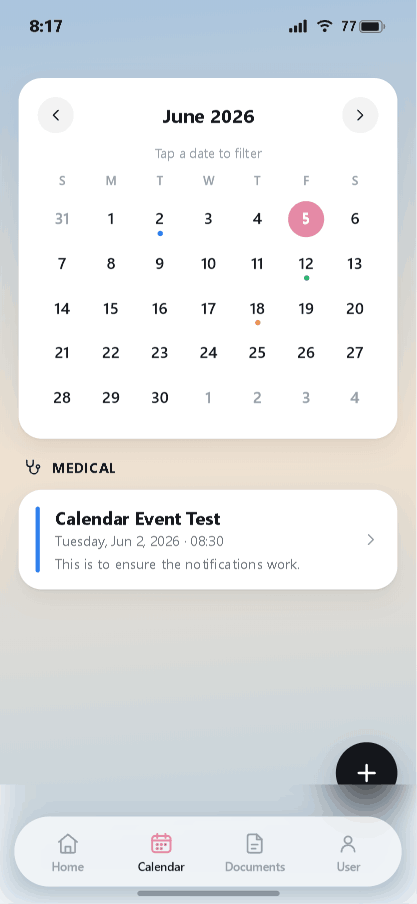
Tap Calendar in the bottom bar. Move between months with the arrows, and tap a date to filter the list below to just that day. Colored dots under a date show that something is scheduled — each color is a category (for example, Medical or School). Events appear in a list beneath the grid with their title, date, time, and notes.
Adding an event
Tap the + button (bottom-right) to add an event. You can also start from Add events on the home screen.
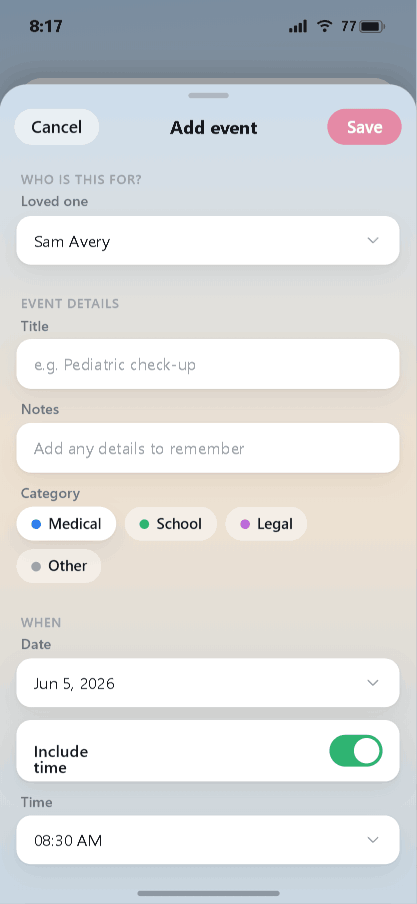
- Who is this for? — pick the loved one the event belongs to.
- Event details — a title (e.g. "Pediatric check-up") and any notes.
- Category — Medical, School, Legal, or Other. This sets the event's color.
- When — pick the date. Turn on Include time to set a specific time, or leave it off for an all-day reminder.
Tap Save. The event appears on the calendar under its date and color.
A tip for staying ahead
Add refills and recurring appointments as soon as you know them. Because each event is tied to a loved one and a category, you can glance at the month and immediately see whose appointment is coming up and what kind it is.
Next: school and insurance records.
Stay organized with iDocThis
Keep the documents, notes, and dates that matter for Using iDocThis in one secure place.
Get startedRelated articles